Get my FREE Weekly Newsletter
Are you frustrated with how long it
takes you to get things done in Excel?
"You may have been using Microsoft
Excel for years, but I'll bet there are hundreds, maybe even
thousands, of amazing tips and tricks that you haven't
discovered yet."
My Goal is to Inspire You to
Love using Microsoft Excel
I've been using Excel almost every
day for more than 25 years and I have discovered thousands of
EASIER, FASTER and 'FUNNER' ways to get things done in Excel.
| Your
tips are quick and easy to read, and not
overwhelming... You have hit upon the perfect format! I absolutely love your tips! I love that they come one at a time, so you have a chance to actually use them and get used to using them. They are quick and easy to read, and not overwhelming. And I love that they are usually something easy to pick up yet something that saves me time and frustration. You have hit upon the perfect format! Kathy W |
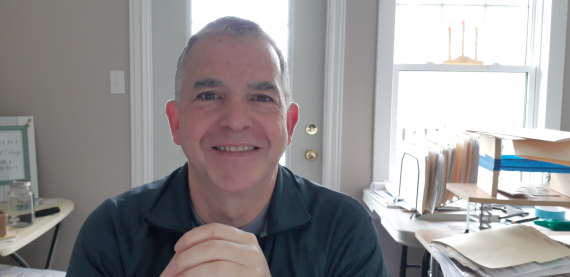 THINGS HAVE CHANGED!Recently, things have changed at The Excel Addict, however I have not yet updated my website to reflect those changes. Please click here to read all about it. Then come back to this page if you still want to subscribe to my newsletter. Francis |
If you'd like to know them too...
...you can read some of my recent posts here...

...then sign up for my FREE
twice-weekly newsletter
"Spreadsheet Tips From An Excel Addict"
You'll learn...
'Excel
in Seconds' shortcuts that you can
learn in under a minute
&
'Excel
in Minutes' tips and tricks that you
can learn in just a few minutes
I'm going to show you 'Excel Secrets' that will Quickly and Dramatically boost your Productivity in Excel
Plus you also get my 'Excel in
Seconds' E-book for FREE

Here's what some of my newsletter readers are saying...
| "...some
people are already speeding up their processes with
your tips." Francis, I just wanted to let you know that our company loves your subscription. I have been subscribed since my last job in NYC for the last 5 years. I brought your excel tips to the attention of my associates in our last finance meeting here at my new position in Albany, NY. Needless to say, everyone loves your subscription and is very impressed. I directly know that some people are already speeding up their processes with your tips. So thanks again. -- Mathew B., Albany, NY |
| "You
have inspired me, I'm having fun with Excel once
again." Dear Mr. Hayes, First of all, thank you for the wonderful Aha! experiences I had reading your "101 Secrets of a Microsoft Excel Addict." Thank you for being such an Excel Addict. Action does generate inspiration. You have inspired me, I'm having fun with Excel once again. Cheers, Ivan |
| "
I am always excited when I see your newsletter in my
inbox" Hi Francis, I am always excited when I see your newsletter in my inbox. I rush to get more pressing matters out of the way so I can open your email to see what new and interesting tips await. Sincerely, your avid reader, Julie S. |
| "Sometimes
I think you are looking over my shoulder..." Francis, Your Newsletter improves my Excel skills every week. Sometimes I think you are looking over my shoulder and send just the right solution at the right time. -- Don S. (Supply Chain Support Analyst) |
| "You're
newsletter is invaluable" Thank you so much! You're newsletter is invaluable ... I've learned so much! I just wanted you to know how much I appreciate knowing that other people find Excel as exciting as I do! Thank you! Thank you! Thank you! -- Becki P. |
You too can be benefiting from
these tips in my FREE newsletter, Spreadsheet Tips From
An Excel Addict', just a few minutes from now.

Discover how consistently turbocharging your Excel skills week after week with my step-by-step, easy-to-understand, time-saving tricks, tips and tutorials can transform the way you use Excel!
Sign up for my FREE
twice-weekly Newsletter
'Spreadsheet
Tips From An Excel Addict'
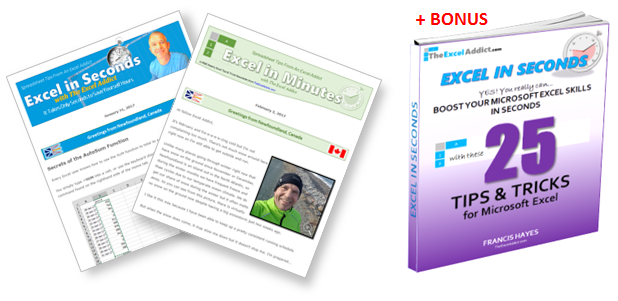
'Excel in Seconds'
& 'Excel in Minutes'
And I'll give you my 'Excel in Seconds' E-book as a BONUS!
(Download it immediately after
you sign up)
Copyright Francis Hayes © 2020 All Rights Reserved
8 Lexington Place, Conception Bay South, NL Canada A1X 6A2
Phone 709-834-4630
This site is not affiliated with Microsoft Corporation.